The checkout's hidden settings: tracking, consent and SEO
Checkout tracking, cookie consent and search settings are invisible to buyers, but they decide how well you can measure and improve the page. Get them right and you can talk about your checkout with numbers instead of guesses.
I put real effort into this layer on my Clepher checkout, and it's the reason I can run tests with confidence.
Why do the hidden settings matter?
A checkout with clean tracking tells you where buyers come from, what each ad produced and what happens on the way to the pay button. A checkout with a good consent setup does that while respecting the visitor's choice. And a checkout with the right SEO settings stays a checkout, not a search result.
None of that is visible to the buyer, and all of it shows up in your decisions.
What I do on my checkout
A full measurement stack. After a visitor accepts cookies, the page runs Google Tag Manager, Google Ads, GA4, the Facebook pixel, Provely and PayKickstart's own tracking. That gives me ad platforms that can learn from purchases and analytics that show what the page is doing.
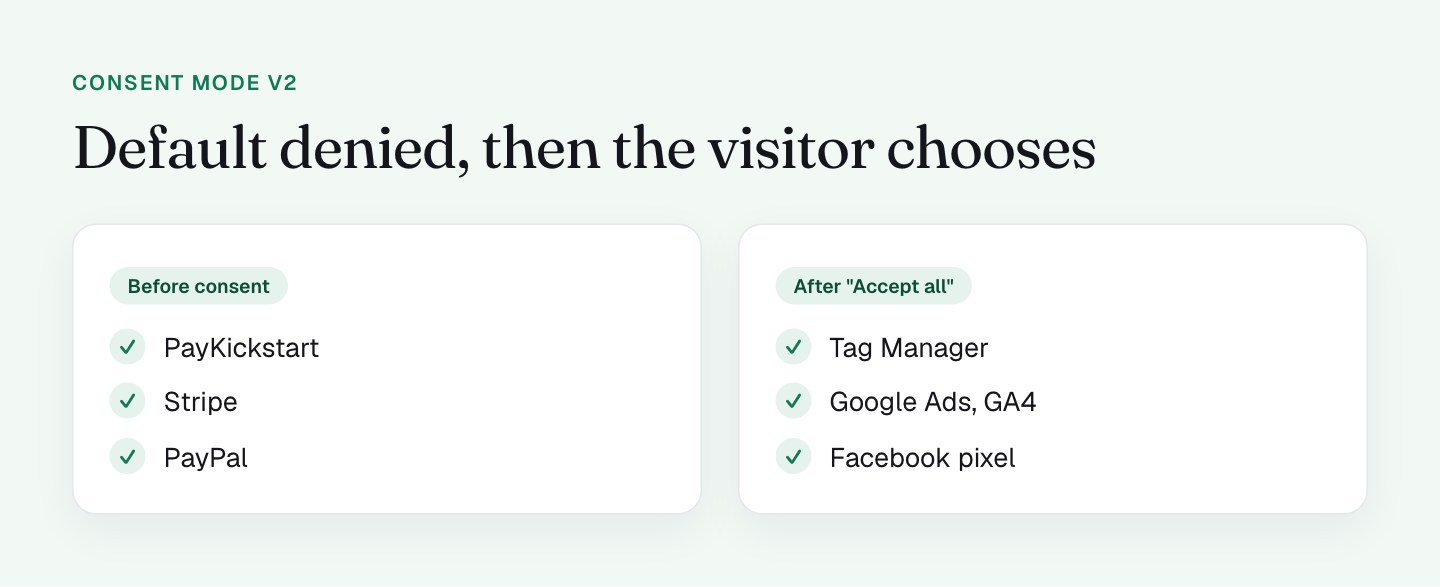
Consent Mode v2, done properly. All consent signals default to denied. The marketing scripts are held back, tagged as text/plain, so the browser doesn't run them until the visitor accepts. Before consent, the page loads only what the checkout needs: PayKickstart, Stripe, PayPal, Google Pay, hCaptcha and a few utilities such as fonts and a chat widget.
I like this setup because the order is right. The things the checkout needs run first, and measurement and ads run after the visitor chooses. Plenty of sites get this wrong. If you build it, here's what I'd verify:
- Default is denied. In a fresh private window, no ad or analytics requests fire before you click.
- Accept changes behavior. After accepting, the tags start. If nothing changes, your consent wiring needs work and your data will have gaps.
- Reject really rejects. Test the other button too.
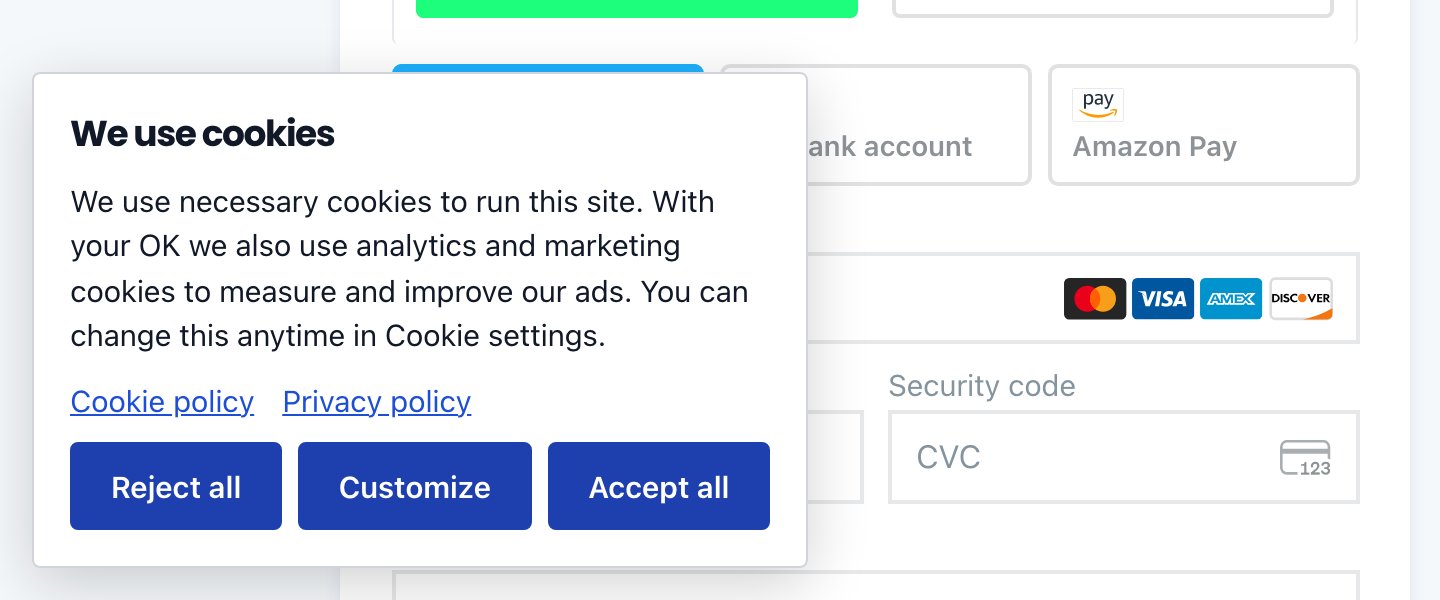
A banner that's easy to deal with. The cookie banner appears at the bottom left on desktop, with "Reject all," "Customize" and "Accept all" as clear choices, so a buyer can deal with it in 1 tap.
What I'll do differently
This is a strong base. Next I'm tuning 4 things.
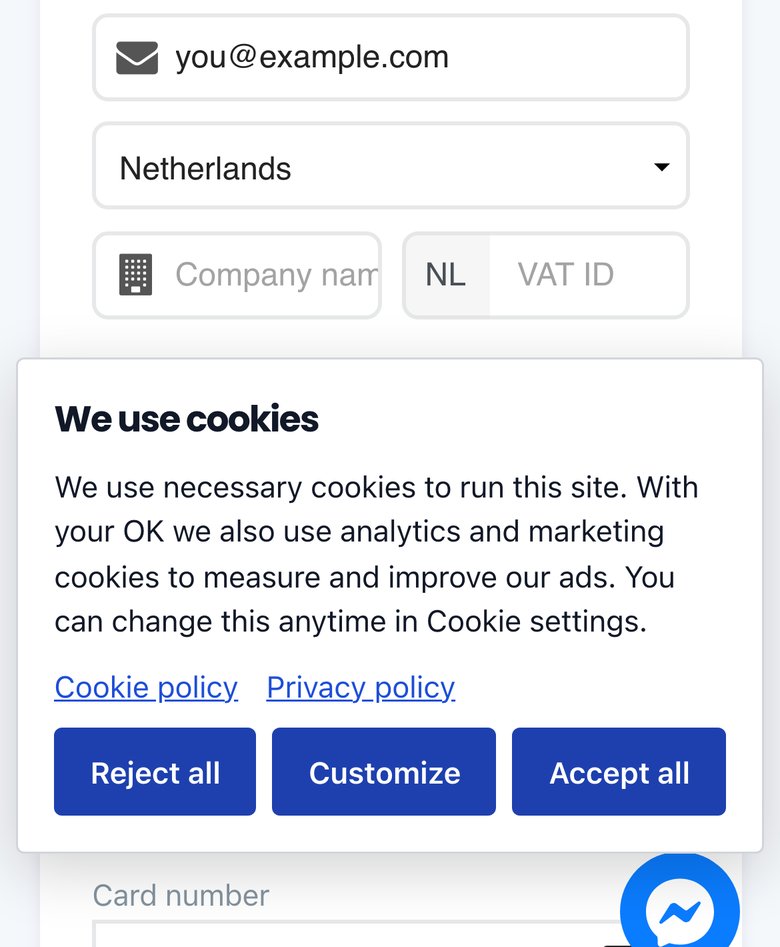
I'm making the cookie banner more compact. On a first visit it covers part of the payment area on desktop and about 1/3 of the first screen on an iPhone-sized screen. I'm testing a thinner bar that leaves the form fully visible and doesn't stack with the chat bubble. I covered overlays in the mobile checkout post.
I'm setting the checkout to noindex. The page currently says index, follow, and the SEO plugin lists an estimated reading time of 18 minutes. A checkout isn't written to rank, and a buyer who finds it in Google skips the sales page that did the persuading. Next I'm switching it to noindex.
I'm cleaning up the share preview. The og:description starts with "$300 OFF RESERVED FOR 10:00." If someone shares the link, I'd rather the preview show a plain title and description that still make sense a week later.
I'm checking each analytics property. The page reports to 2 GA4 properties. I'm confirming I want both, and that each has a clear purpose.
How do you keep personal details out of URLs?
This is a rule I'd apply to any checkout: never let a personal detail in the URL reach your pixels.
Email links often carry a name or an email address so the form can be prefilled, which is a great conversion tactic. The catch is that the page URL is also the page location that analytics and ad tags report. If a tag reads the full URL, whatever is in it can travel with the hit.
I wrote about what email links carry in the first post of this series, and about the extra parameters email platforms add in part 2, on email link parameters. The principle:
- Read the values you need, then remove them from the address bar with
history.replaceStatebefore your tags fire. - Or pass them to the form another way, so they never sit in the top-level URL.
- Prefer an ID that means nothing outside your system over a raw email address.
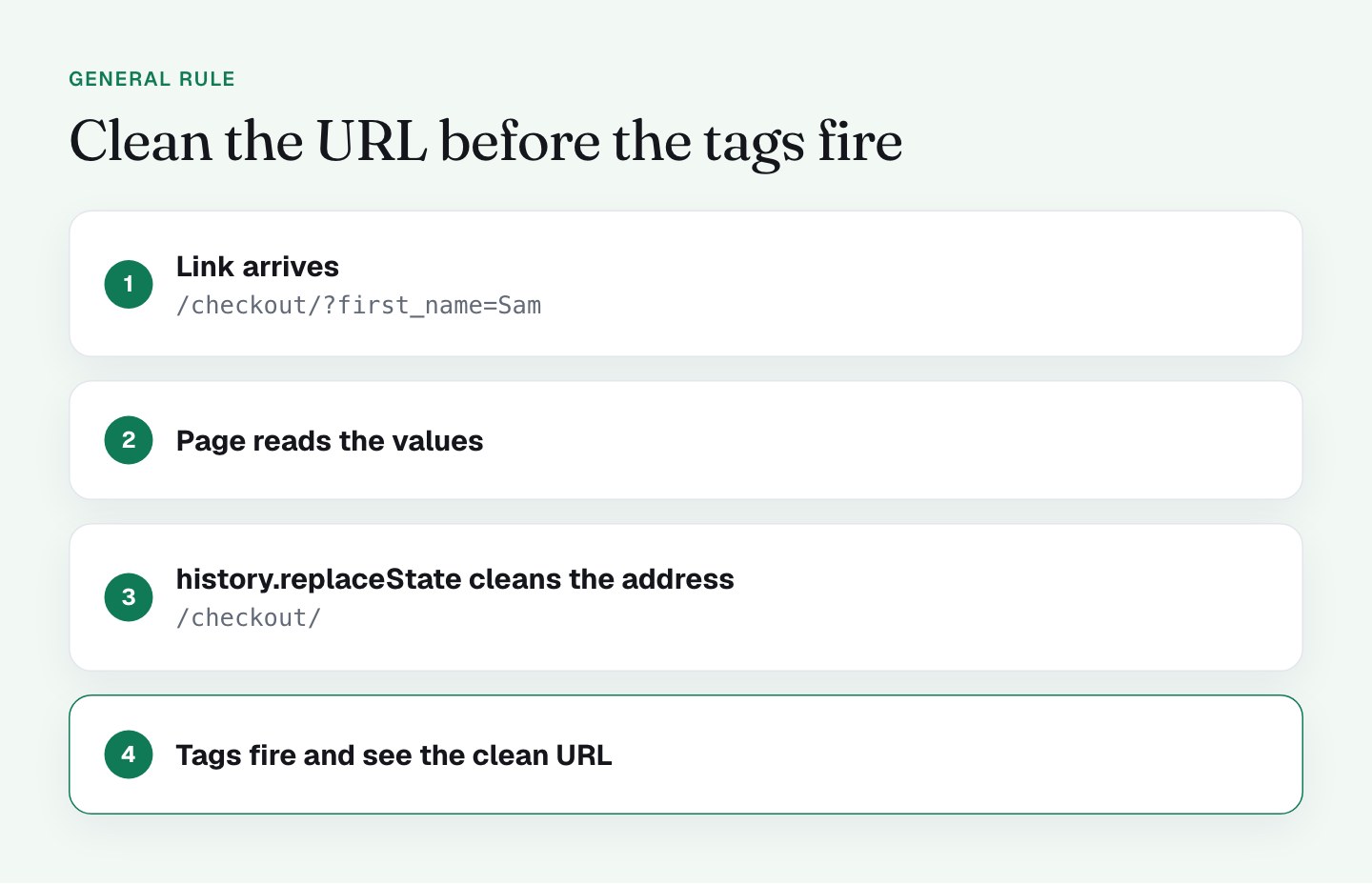
To see what your own pixels receive, run the audit below. Step 3 is the 1 that matters here.
What does a 10-minute checkout tracking audit look like?
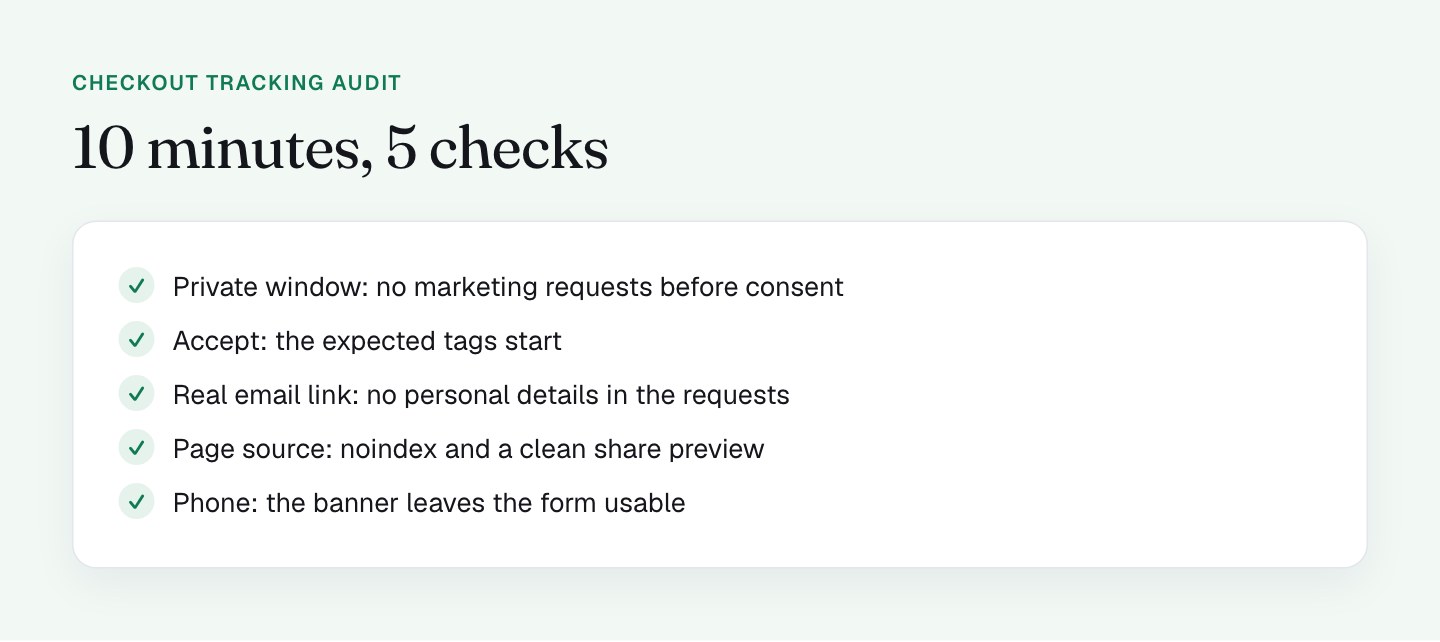
- Fresh private window, no consent. Network tab open. Confirm no marketing requests fire.
- Accept. Confirm the tags you expect start, and only those.
- Open it from your real email link. Check what the analytics and ad requests contain.
- View the page source. Look for the robots meta tag and the social preview tags.
- Check the banner on a phone. Does it cover the form or the pay button?
- Run 1 test purchase in a safe mode and confirm the conversion shows up once in each platform.
What to check on your own checkout
- Does the page set
noindex? - Do marketing scripts wait for consent, and does Consent Mode default to denied?
- Does your consent banner leave the form usable on a phone?
- Does any request to a tag or pixel contain a name or an email address?
- Does the link preview (Open Graph tags) say something you'd be happy to see in a chat?
- Do you know why each analytics property on the page exists?
Wrapping up the series
This checkout converts at 50 to 60% of the people who reach it, and every tactic in this series is a piece of why: the link, the path to the form, the fields, the offer, the proof, the guarantee and the measurement behind it all. The audit gave me a list of next iterations, and I'll test them 1 at a time. Pick the 3 cheapest ideas from your own checkout, run them this month and measure again.
FAQ
Should a checkout page be indexed by Google?
No, I'd set it to noindex. A checkout page isn't written to rank, and a buyer who lands on it from search skips your sales page and your offer. The SEO plugin setting takes about 5 minutes to change.
What is Consent Mode v2 and how does it work on a checkout?
Consent Mode v2 is Google's way of letting tags adjust their behavior to the visitor's cookie choice. A good setup defaults every signal to denied, holds marketing scripts back and starts them only after the visitor accepts.
How do I check what my checkout sends to Google and Facebook?
Open the checkout in a private window with the browser's Network tab, accept cookies, then filter for collect, doubleclick and facebook. Click each request and read its URL and payload, and look for any name or email address.
Can I put a customer's email in the checkout URL?
It's convenient for prefilling, but I'd keep personal details out of the address bar. Read the values you need, then remove them with history.replaceState before any tag fires, so the pixels only see a clean URL.